
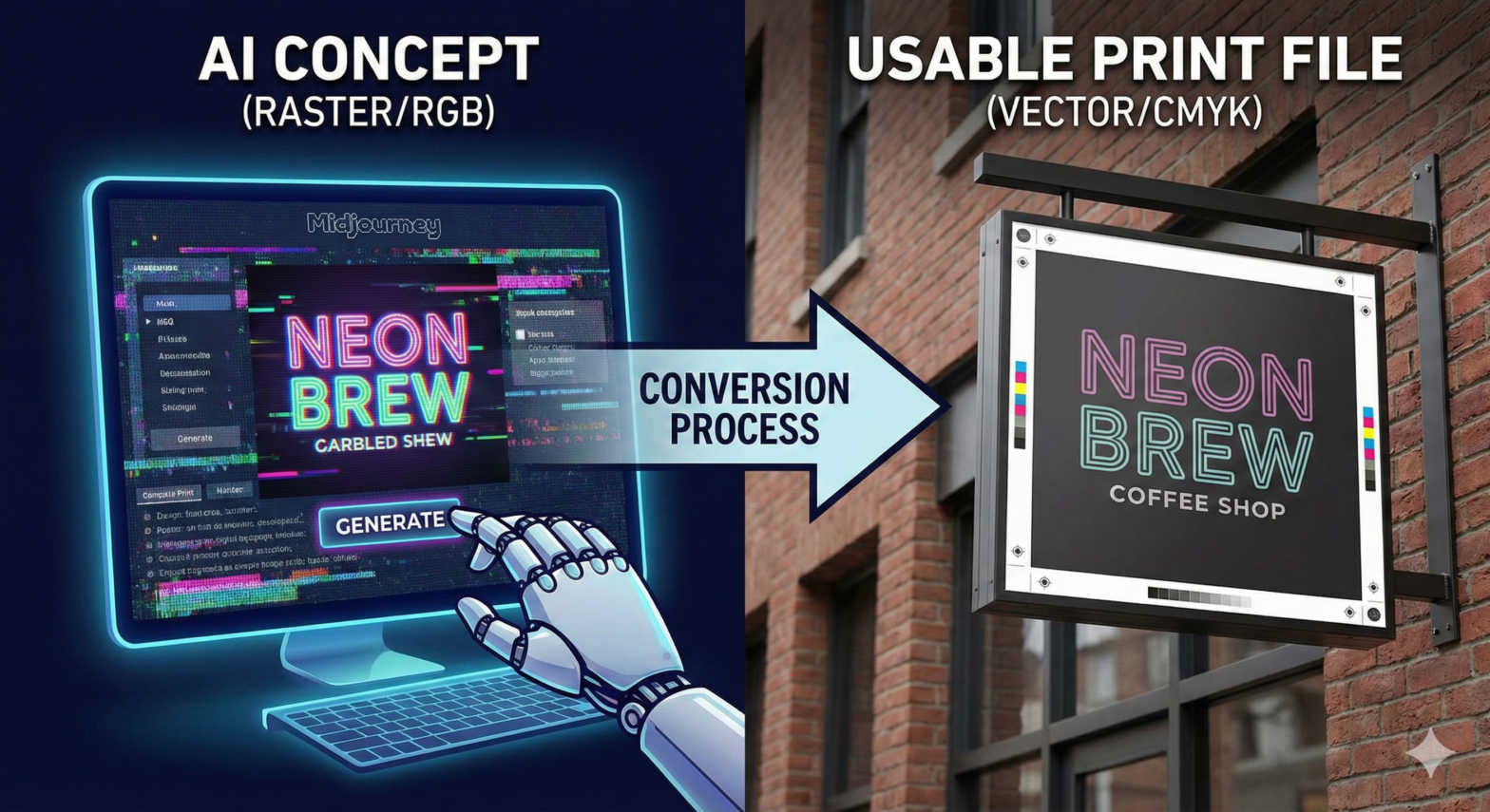
Whether you are launching a pop-up shop, organizing a community event, or just need a new “Open” sign for your business, custom signage is essential. But traditionally, getting a professional sign designed meant expensive software, hiring a freelance designer, or waiting weeks for revisions.
Enter Generative AI.
Tools like Midjourney, DALL-E 3, Gemini, Chat-GPT and Leonardo.Ai have democratized design. However, there is a massive difference between a cool image on your screen and a usable file that a print shop can actually work with.
If you just send a raw AI image to a printer for a 6-foot banner, you are likely to get a rejection email or a blurry, pixelated mess. Here is your guide to using AI to create files that are actually ready for the printing press.
The Core Problem: Raster vs. Vector
To create a usable file for signage, you first need to understand the limitation of current AI models: They create raster images.
- Raster Files (JPG/PNG from AI): Made of pixels. When you stretch them to the size of a sign, the pixels get huge and the image looks “blocky.”
- Vector Files (EPS/PDF/SVG for Print): Made of mathematical paths. These are the “usable files” printers love because they can be scaled to the size of a billboard without losing quality.
The Strategy: Do not view the AI download as the final file. View it as the blueprint. You use AI to generate the concept, color, and layout, and then you must convert that into a usable format.
Step 1: Prompting for “File Usability”
You can save yourself hours of headache by prompting the AI to create images that are easier to convert into usable files later. You want to avoid “noise” and complex lighting that confuses print software.
Here are the specific prompt additions that lead to better files:
1. Demand “Clean” Data
To make a file usable, it needs clear separation between colors. This allows for easier vectorization (tracing) later.
Add these to your prompts:
"flat vector illustration style""clean lines, high contrast logo design""solid colors, no gradients, no shading""white background"(This makes removing the background much easier).
2. The “CMYK” Color Simulation
Printers use CMYK (Cyan, Magenta, Yellow, Black) ink. Screens use RGB light. If your AI file is full of neon RGB colors, the printed result will look muddy.
Add this to your prompt:
"using a CMYK color palette appropriate for print""muted, print-safe colors""avoiding neon colors"
3. Font “Placeholders”
AI is getting better at text, but it often creates “gibberish” or low-resolution letters. For a file to be usable, the text usually needs to be replaced. However, you can ask the AI to set the style.
Add this to your prompt:
"featuring text in the style of Helvetica Bold""typography inspired by retro Cooper Black font""incorporating a handwritten script font style similar to Great Vibes"
Step 2: From AI Concept to Usable Print File
You have generated an amazing image using the prompts above. Now, how do you make it a usable file for a sign?
The Golden Rule: Having a general guideline from AI is great, but sometimes the logos or designs need to be recreated to be print-ready.
Option A: The Upscale Method (For Photos/Complex Art)
If your design is a photograph or complex painting that cannot be turned into a vector, you must increase the resolution.
- Take your AI image.
- Run it through an AI Upscaler (like Topaz Gigapixel or free online alternatives).
- Target a resolution of at least 150-300 DPI at the actual size of your sign.
Option B: The Vector Method (For Logos/Graphics – Recommended)
This is the professional standard for “usable files.”
- Take your “Clean/Flat” AI generation.
- Import it into software like Adobe Illustrator (paid) or Inkscape (free).
- Use the “Image Trace” function to turn the pixels into vectors.
- Crucial Step: Delete the AI-generated text and re-type the words using the actual font files you referenced in your prompt. This ensures the text is razor-sharp.
Summary Checklist for Usable Sign Files
Before you send your file to the printer, check these boxes:
- Is it Scalable? If it’s a logo, ensure it has been converted to a Vector (EPS/PDF).
- Is the Text Real? Don’t trust the AI’s pixels. Overlay real text for perfect readability.
- Is the Color Safe? Did you prompt for CMYK colors to avoid disappointment?
- Did you use the “General Guideline” approach? Remember, the AI gives you the idea; you (or a designer) create the final file.
By treating AI as a drafting tool rather than a final production tool, you can create professional, usable files that look as good on a banner as they do on your screen.